Organize Tunnels with Groups, Auto-start and Automatic Reconnection
Version and screenshots
This guide describes the current source version. Published installers may have fewer features; check your build against the release notes. Screenshots use demonstration data and a Pro example state.
A growing tunnel list often mixes environments, customers and temporary experiments. Groups make those entries easier to find, while auto-start and reconnection reduce repetitive connection work.
Before you start
Create at least one working tunnel and verify its credentials and endpoint manually. The same management workspace contains SSH, Dev Tunnel, Cloudflare and FRP entries, but each provider still has its own connection requirements.
Group and duplicate connections
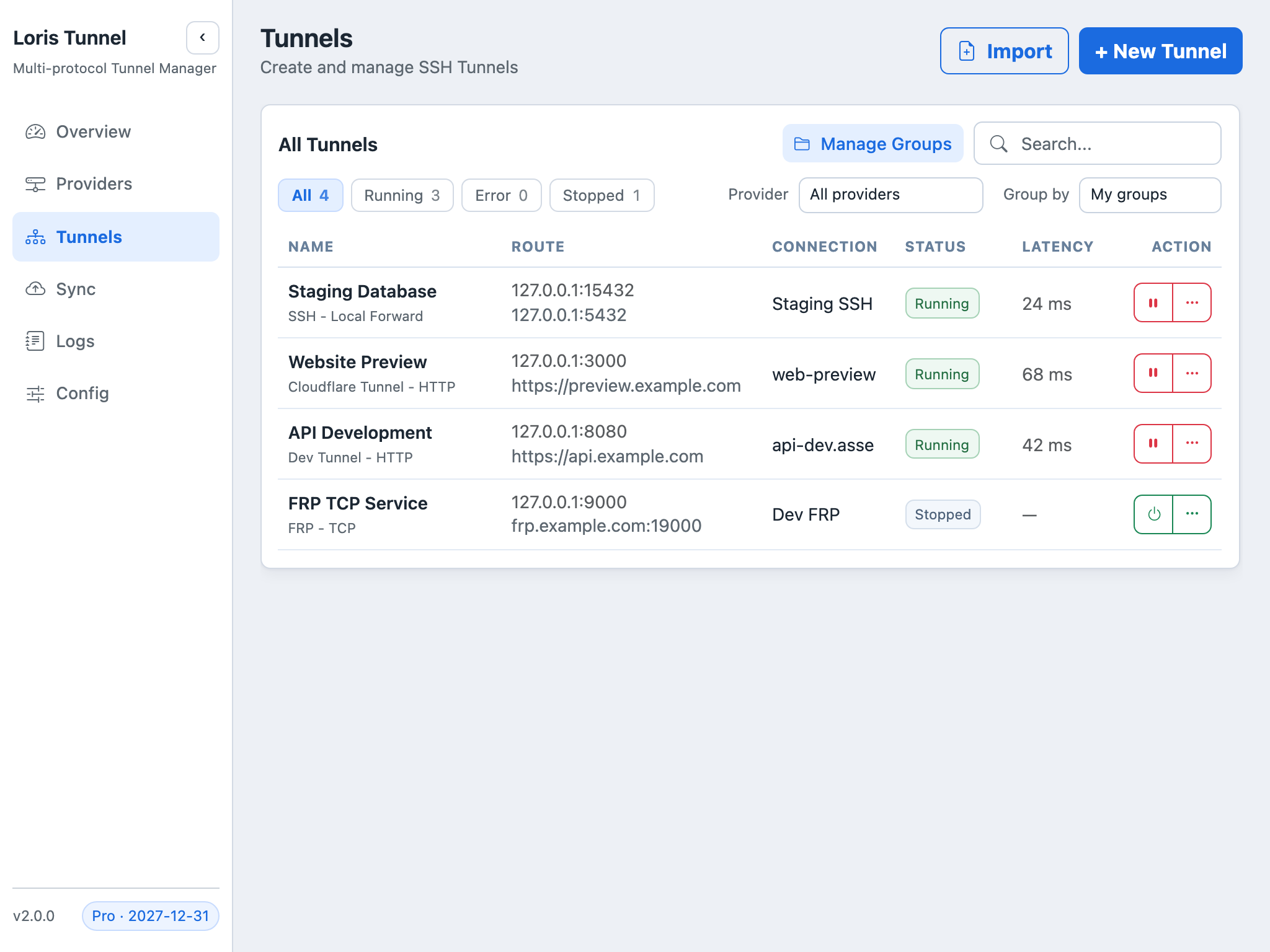
- Open Tunnels and create a group named for a real workflow, such as Development or Reporting.
- Assign tunnels to the group when creating or editing them, or use Move to group for an existing entry.
- Use the list's search and group controls to focus on the connections you need.
- Duplicate an existing entry when creating a similar route. Give the copy a distinct name and check ports, hostnames and provider resources before starting it.
A copy is not automatically a safe second connection: two local listeners cannot occupy the same address and port, and Cloudflare or FRP endpoints can have uniqueness requirements. Review the route rather than changing only the display name.
Choose auto-start deliberately
Edit a tunnel and enable Auto start with app if it should connect when the app opens. Set launch-at-login separately under Config if you want the application itself to open after signing in to the operating system.
These are two different controls: starting the desktop application does not mean every saved tunnel should connect. A saved manual-stop choice can also affect whether an eligible entry restarts. Check those choices after restoring another device's configuration.
Understand automatic reconnection
When an established connection is interrupted, the application attempts recovery according to its runtime logic. Reconnection helps with temporary network loss; it does not correct a revoked credential, invalid DNS record, occupied local port or stopped origin service.
If a tunnel repeatedly reconnects, read Logs and test the underlying service before creating duplicate entries. Stopping a tunnel explicitly should be your way to end an unwanted session.
Free and Pro running limits
Free users can run up to three tunnels across all providers combined. Starting and reconnecting entries reserve a slot too, and auto-start follows the same limit. Saved configuration count and active connection count are different concepts.
An active Pro license removes the application's concurrent-tunnel limit and enables cloud backup. If license verification fails, new starts use the free limit. Remote service quotas and server capacity continue to apply even with Pro.
Verify your startup workflow
Close and reopen the app, inspect which selected tunnels start, and check logs for entries that did not. Test application access through at least one tunnel. If there are more auto-start candidates than available slots, choose the essential connections or stop an unneeded active tunnel before starting another.
Common questions
Why is the fourth tunnel blocked while one is reconnecting?
The reconnecting tunnel still occupies a slot. Stop it if that connection is no longer needed, or check your Pro activation under Config.
Does a group create a shared SSH connection?
A group organizes entries in the UI. Configure SSH jump chains and each tunnel's route explicitly; a group name is not a network topology setting.
Can I duplicate a tunnel to change providers?
Review the new-tunnel flow and create a new entry for the intended provider. Editing an existing saved tunnel does not switch its provider.