Move the Loris Tunnel Configuration Directory
Version and screenshots
This guide describes the current source version. Published installers may have fewer features; check your build against the release notes. Screenshots use demonstration data and a Pro example state.
A custom configuration directory can help keep tunnel settings in a known backup location or separate a working setup from the default directory. Loris provides a directory control in the desktop settings, so you do not need to edit the redirect file for everyday use.
Before you start
Export your current configuration and choose a directory accessible to your user account. Configuration may contain passwords and a license code, so use a location with appropriate access controls. Avoid running two application instances that write the same TOML file.
Default and effective locations
Installed builds normally use ~/.loris-tunnel/config.toml. In wails dev, a writable working directory uses ./config.toml; otherwise the home directory is used.
A config.root file next to that default configuration points to the effective data directory. Its first line contains an absolute directory path, not a TOML filename. If the target is invalid, unavailable or insufficiently accessible, the app falls back to its default location.
A custom directory changes the effective location. It does not change what the cloud backup includes or transfer provider credentials that live elsewhere.
Change the directory in the UI
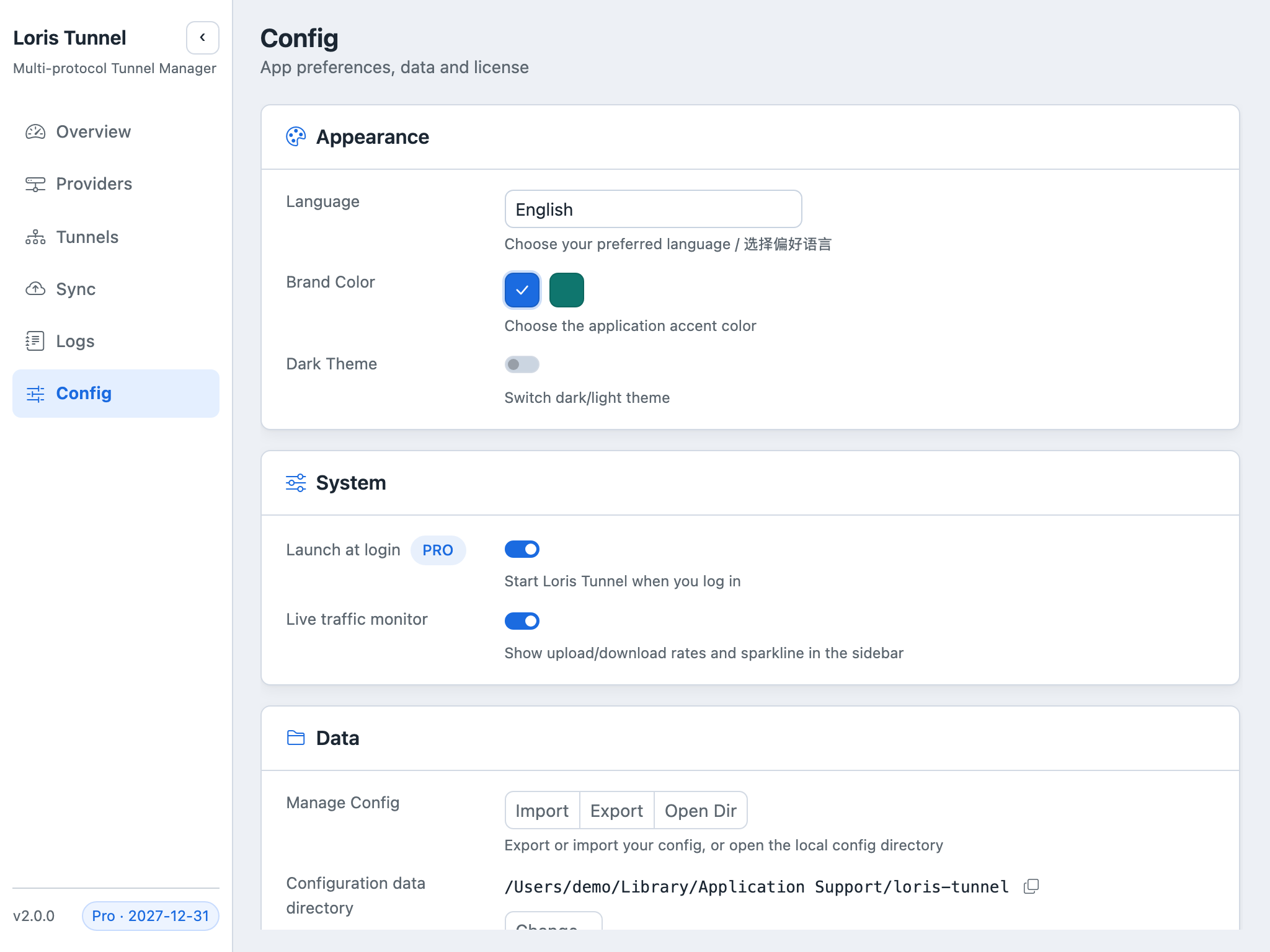
- Open Config and find Configuration data directory.
- Review the current effective path before choosing another folder.
- Confirm the copy and switch operation. If the target already has configuration files, deliberately choose Overwrite or Use existing based on which configuration you want to keep.
- Allow active tunnels to stop and the application to exit. Packaged builds attempt to reopen; if needed, reopen manually. Under
wails dev, start it again yourself. - Revisit Config and verify the effective path before editing or starting connections.
Choosing an existing profile can change the tunnels and credentials referenced by the app. Take a copy of both profiles before overwriting anything important.
Restore the default location
Use Restore default in the same settings section. Review the confirmation: the app copies the configuration back, removes the redirect and exits for a restart. Verify the resulting path and configuration after reopening rather than assuming the old default profile remains untouched.
Back up the right files
Keep a copy of the effective TOML, not merely the old default file. If you need machine-local settings as well, account for frp-local.json and environment-specific sync settings. Private keys and Cloudflare credentials can live outside this directory; use a separate secure backup strategy for them.
Cloud backup uploads only the effective TOML, not config.root, keys, FRP server tokens or provider sign-ins. Moving a directory does not make those files part of the upload.
Verify the move
Check the effective path in Config, inspect the tunnel list, and start one known-good connection. Confirm that changes are saved to the selected directory. If you use cloud backup, check its connection status after the move as well.
Common questions
Why did the app return to the default directory?
Check whether the custom folder is mounted, accessible and writable, and whether config.root still points to its absolute path. An invalid redirect falls back to the default.
Can I copy config.root to another operating system?
An absolute Windows path normally will not resolve on macOS. Select the directory on each device through the UI and verify its effective path.
Is a shared folder a multi-device synchronization engine?
No. Avoid concurrent writers to the same TOML. Use the app's explicit cloud conflict and restore workflow when adopting another device's configuration.